All designs are set up in Canva. If you do not have a Canva account, you will be prompted to create a free account.
Instructions:
- Click on a graphic in this pdf to access the Canva file. If you do not have a Canva account, you will be prompted to create a free account.
- For the profile photo frames, the photo can be replaced by dragging your photo to the Canva page, then dragging it into the circle to replace the image. Double click the image to resize if needed.
- In all graphics, the graduation year can be changed by double clicking on the text box to edit it.
- To download the files, click “Share” in the top right corner, then click download. Make sure the intended pages are selected and then click the “Download” button.
Social Media Profile Photo Frames
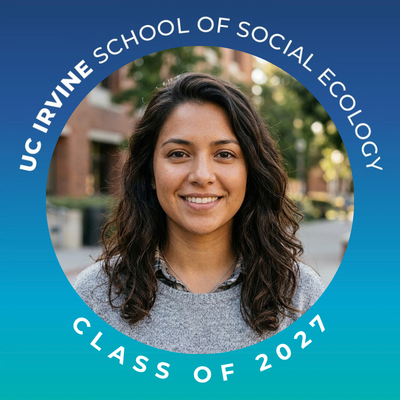

Profile photo frames are available in two design options. The options are set up as different “pages.”
Social Media Profile Header Images
Click on a graphic to access the Canva files.



For each size, profile header images are available in three design options (below). The options are set up as different “pages” within the Canva file. For LinkedIn header images, options are provided with and without majors.



Social Media Posts
Click on a graphic to access the Canva files.



For each size, social media posts are available in six design options (below). The options are set up as different “pages” within the Canva file.